> ## Documentation Index
> Fetch the complete documentation index at: https://docs.buildinjuno.com/llms.txt
> Use this file to discover all available pages before exploring further.
# Getting Started
> Sign in, activate your account, and learn your way around Juno.
Juno turns an idea into a working prototype you can build and try directly on iPhone or iPad.
 Juno is currently invite-only. [Request an invitation](https://buildinjuno.com/#beta) before you start building.
## Set up your account
Use **Sign in with Apple** or **Continue with Email**. New email accounts must be verified before signing in.
Enter the invitation code you received and tap **Claim**. The invitation stays with the account that claims it.
Juno explains what may be sent to our AI providers. Choose **Allow and Continue** to enter the app, or decline to sign out.
## Find your way around
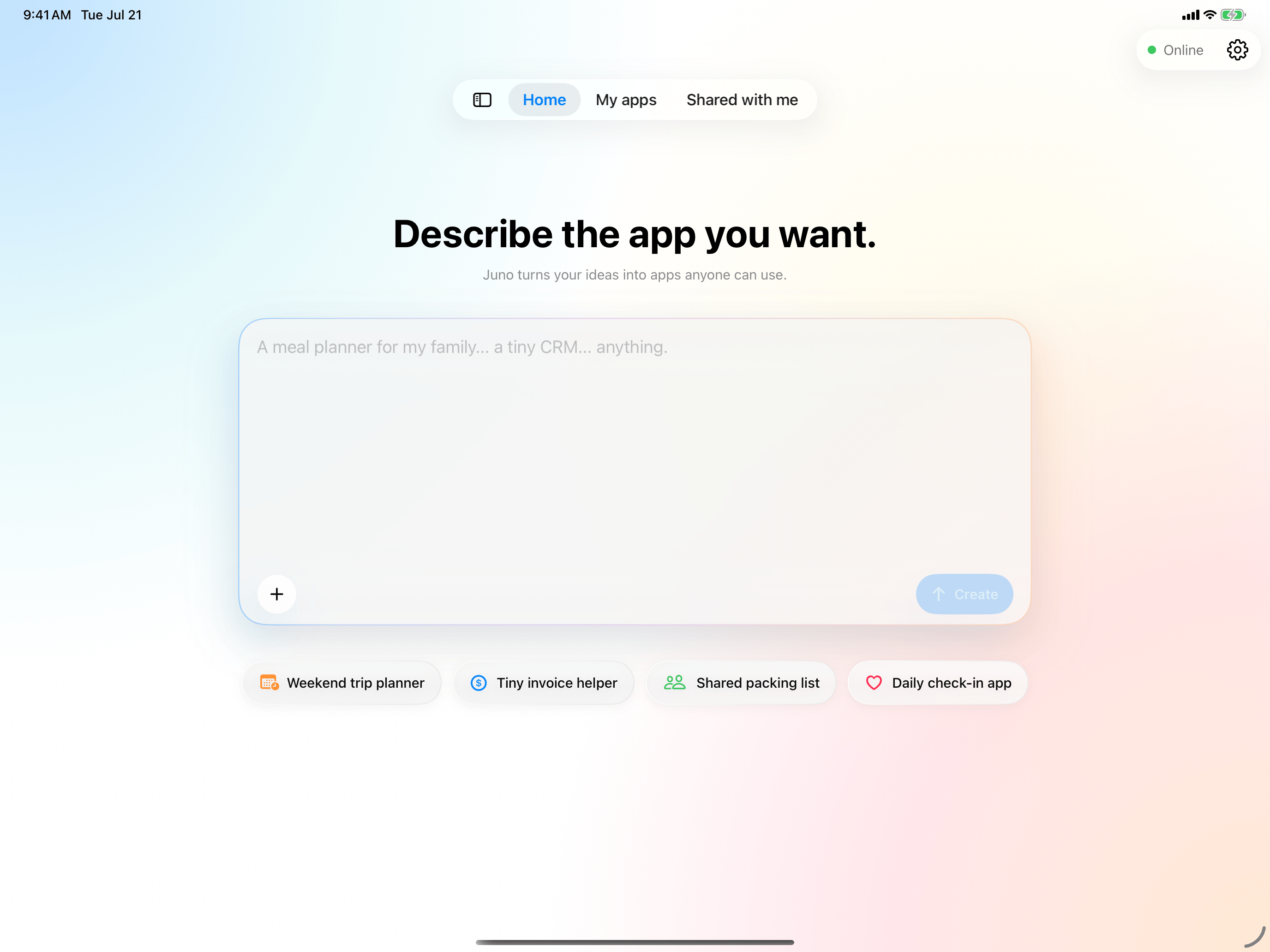
* **Home** — start with an idea or choose a suggestion.
* **My apps** — find and manage the projects you created.
* **Shared with me** — return to projects other people shared with you.
Start with a simple idea and see it take shape.
Learn how to ask for useful changes.
Juno is currently invite-only. [Request an invitation](https://buildinjuno.com/#beta) before you start building.
## Set up your account
Use **Sign in with Apple** or **Continue with Email**. New email accounts must be verified before signing in.
Enter the invitation code you received and tap **Claim**. The invitation stays with the account that claims it.
Juno explains what may be sent to our AI providers. Choose **Allow and Continue** to enter the app, or decline to sign out.
## Find your way around
* **Home** — start with an idea or choose a suggestion.
* **My apps** — find and manage the projects you created.
* **Shared with me** — return to projects other people shared with you.
Start with a simple idea and see it take shape.
Learn how to ask for useful changes.